What you need
- A Windows 10 or 11 PC
- A Nintendo Switch 2 Pro Controller (or the original Switch Pro Controller)
- A USB-C cable (for the wired setup) or Bluetooth on the PC
- connectyourpro — free and open source. The installer also sets up the ViGEmBus driver if you don't have it; that's the component that lets Windows host virtual gamepads.
Why is a tool needed at all? On the console, the Switch 2 Pro Controller receives a proprietary activation sequence before it starts sending input. A PC never sends it, so out of the box the controller does nothing on Windows. connectyourpro replays that sequence and then presents the controller to your games as a standard Xbox 360 (XInput) or DualShock 4 pad.
Switch 2 Pro Controller over USB (recommended)
- Install and launch connectyourpro.
- Plug the controller into the PC with a USB-C cable.
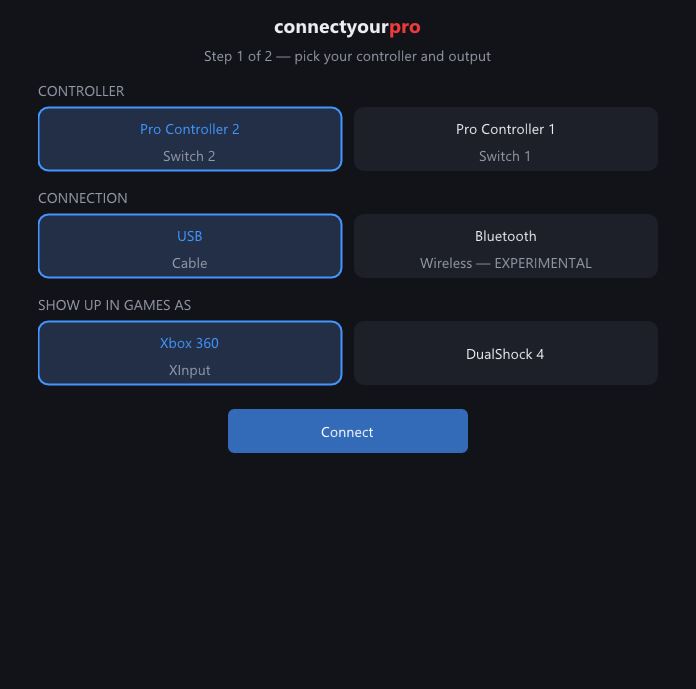
- In the app pick Pro Controller 2 → USB → Xbox 360 (XInput) (best compatibility) or DualShock 4.
- Press Connect. Activation runs automatically — after a second or two the dashboard appears.
- Press a few buttons: they light up on the controller schematic. You're done — start your game.
Switch 2 Pro Controller over Bluetooth
Bluetooth on the ProCon 2 is experimental: expect noticeably more input lag than USB, because the controller talks Bluetooth LE and Windows' BLE stack adds delay. The OS version matters a lot: Windows 10 caps BLE polling around ~20 Hz (sluggish), Windows 11 reaches ~70 Hz. USB always runs at 250 Hz.
- Do not pair the controller in Windows Bluetooth settings. If it's already paired there, remove it first — Windows will otherwise grab the connection for itself.
- In the app pick Pro Controller 2 → Bluetooth and press Connect.
- Hold the controller's SYNC button (the small round button next to the USB-C port) until the player LEDs start sweeping back and forth.
- The app finds the controller by itself within a few seconds and activates it.
Original Pro Controller (Switch 1)
USB
- Plug the controller in with a USB-C cable.
- Pick Pro Controller 1 → USB → output type → Connect.
Bluetooth
- Pair the controller in Windows Settings → Bluetooth & devices first (hold the SYNC button on the controller until the LEDs sweep, then add "Pro Controller").
- In the app pick Pro Controller 1 → Bluetooth → Connect.
The Switch 1 pad uses classic Bluetooth (not BLE), which is why Windows pairing is needed here but not for the ProCon 2 — the two controllers speak entirely different protocols.
Using it with Steam
Nothing special to configure: once connected, Steam sees a regular Xbox 360 Controller (or DualShock 4, if you chose that output) and every Steam Input feature works as usual.
Gyro in emulators (Dolphin, Cemu)
- Connect the controller in connectyourpro (Bluetooth mode carries motion data).
- On the dashboard enable DSU server (gyro for emulators).
- In the emulator, add a DSU / Cemuhook motion source pointing at
127.0.0.1port26760:- Dolphin: Controllers → Alternate Input Sources → enable, address as above.
- Cemu: Input settings → add DSU controller as motion source.
Troubleshooting
The "Pro Controller" in Windows' game controller panel flashes randomly
Expected. That entry is the physical controller, which after activation speaks a protocol Windows can't parse. Games use the virtual Xbox 360 Controller — test that one (or use the live schematic right in the app).
No input after pressing Connect (USB)
- Unplug the USB cable, plug it back in, press Connect again.
- Try a different USB port and a data-capable cable (some charge-only cables won't work).
- Close other tools that may hold the controller open (Steam with the pad configured, a procon2tool browser tab).
Bluetooth scan never finds the ProCon 2
- Remove the controller from Windows' Bluetooth device list if it's there.
- Hold SYNC until the LEDs sweep while the app is scanning.
- Hit the cooldown? Wait a few minutes — the controller locks up after repeated attempts.
Buttons feel wrong (A/B swapped)
That's the Nintendo vs Xbox layout difference. On the dashboard press Swap A<->B, X<->Y (Nintendo layout), or click any button on the schematic and remap it individually.
It worked yesterday, today nothing
Unplug and replug the controller, then Connect again. If Bluetooth: remove and re-add. The controller occasionally needs a fresh activation after sleeping.